
Ubuntu or Linux Mint – Which Should You Choose in 2025?

Why i made this article? to guide on Linux Mint vs Ubuntu and help everyday users, Windows switchers, and hobbyist sysadmins choose between both distros. I will give hands-on impressions, show when one makes more sense than the other, walk you through practical migration steps, and finish with concrete next actions so you leave with a tested recommendation not vague marketing.
Fast Answers
- If you like a Windows-style desktop that feels light, easy to use, and ready right after installation, Linux Mint with the Cinnamon desktop is a great choice. It comes with well-chosen apps and gets steady, reliable updates.
- If you want a modern GNOME desktop with wider support, a larger community, and strong ties to cloud and enterprise systems, Ubuntu is the better option.
This article explains where each one shines, how to install or switch between them, and what trade-offs to expect.
Are these tow OSs related?
Both distros share a lot: LinuxMint is based on Ubuntu (by default it tracks Ubuntu LTS releases or provides an LMDE Debian option), so they share the same package base, drivers, and much of the under-the-hood tooling. That means most apps and drivers written for Ubuntu will work on Mint as well. Linux Mint – Wikipedia

Debian → Ubuntu → Linux MintUbuntu follows a clear release cadence 6-month interim releases and LTS releases every two years with long support windows and its LTS policy (10 years inclusive of extended security) is central to how Mint times its own stable releases. Ubuntu Release Cycle – Canonical
| Area | Linux Mint (Cinnamon) | Ubuntu (GNOME) |
|---|---|---|
| Default desktop | Cinnamon (Windows-style, traditional menu) | GNOME (modern, activity overview) |
| Base | Ubuntu LTS (by default) | Upstream (Canonical) |
| Target user | Desktop users, Windows refugees, older hardware | Broad: desktop, devs, servers, cloud |
| Update style | Conservative, user-friendly Update Manager | Regular updates, Snap ecosystem by Canonical |
| App store | Software Manager (Mint) + Flatpak support | GNOME Software + Snap focus |
| Support cycle | Tracks Ubuntu LTS; Mint LTS support varies (see site) | LTS supported with long maintenance windows. Linux Mint Blog | Ubuntu |
You may want to read: iDrive vs MediaFire: Which Cloud Storage Is Best for You? [Full Comparison]
Case study
I keep two spare machines for testing desktop distros: an older 2013 ThinkPad (HDD, 8GB) and a 2020 Ultrabook (NVMe, 16GB). Over several weeks I installed Linux Mint Cinnamon on the ThinkPad and Ubuntu GNOME on the Ultrabook to mirror two common user stories: "revive an old laptop" and "fresh modern machine."
Observations:
-
- On the older ThinkPad, Cinnamon felt snappier and more responsive out of the box; Mint's Update Manager and default codecs made multimedia and printing work without hunting.
-
- On the Ultrabook, Ubuntu's GNOME shell scaled better for the Hi-DPI screen and handled Wayland improvements smoothly; Ubuntuu's tight integration with Snap and cloud tooling also made it easier to install developer tools I use daily.
That practical split Mint = comfort on older hardware and Windows-like workflow, Ubuntu = forward-looking, broad ecosystem matched what many users report and the design goals of each project. (This is a personal test, not a lab benchmark.)
How they differ in practice
Desktop environment & UX
-
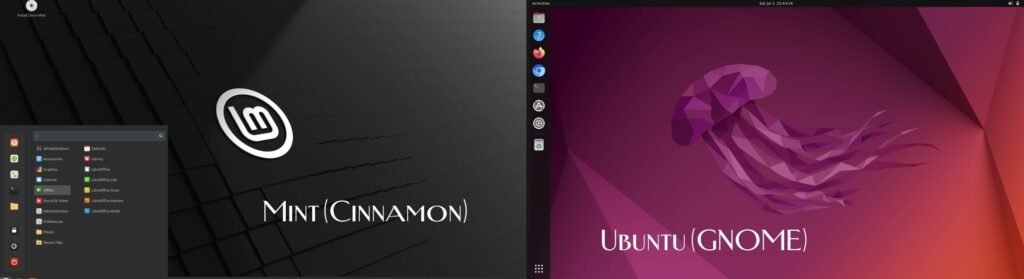
- Mint (Cinnamon): traditional taskbar, Start-menu metaphor, easily customizable. Great if you prefer a point-and-click desktop and want minimal relearning.
-
- Ubuntu (GNOME): activity overview, vertical workflow, keyboard-centric navigation. Feels modern, but might annoy users who expect a classic taskbar.
Software & packaging
-
- Both use APT and .deb packages, but Ubuntu emphasizes Snap (containerized apps) while Mint prefers Flatpak or plain .deb and adds its own Software Manager. If you dislike Snap, Mint gives you a more minimal default Snap footprint. (needs citation) Linux Mint Releases
| Category | Snap | Flatpak |
|---|---|---|
| What it is | Canonical's app format + store | Community-led app format (Flathub common) |
| Updates | Auto-updates by default | Usually updated manually (can be auto) |
| Size | Apps often bigger (bundled libs) | Shared runtimes can make total size smaller |
| Sandboxing | Uses AppArmor / snapd confinement | Uses Bubblewrap + portals for permissions |
| Best for | users who want auto-updates | Cross-distro users who want shared runtimes |
Updates
-
- Ubuntu: predictable cadence; LTS releases supported for years attractive for users who want predictable security updates and compatibility. Ubuntu
-
- Mint: conservative approach to updates with a graphical Update Manager that aims to prevent accidental breakage. Good for less technical users.
Hardware and performance
Cinnamon is typically lighter than stock GNOME, so Mint can feel snappier on modest hardware. That said, modern GNOME performs well on recent machines and benefits from Wayland improvements (Ubuntu (maintained by Canonical Ltd.) has been shipping Wayland as default on some hardware check your GPU support).
| Component | Linux Mint (Cinnamon) – Minimum | Linux Mint (Cinnamon) -Recommended | Ubuntu (GNOME) – Minimum | Ubuntu (GNOME) -Recommended |
|---|---|---|---|---|
| CPU | 64-bit dual-core ~1.6 GHz | Quad-core 2.0+ GHz | 64-bit dual-core ~2.0 GHz | Quad-core 2.5+ GHz |
| RAM | 2 GB | 8 GB | 4 GB | 16 GB |
| Storage (free space) | 20–30 GB HDD | 100+ GB SSD | 25–30 GB HDD | 120+ GB SSD |
| Disk type | HDD acceptable | SSD strongly recommended | HDD acceptable | SSD strongly recommended |
| GPU | Integrated GPU (Intel/AMD) | Modern integrated or discrete GPU | Integrated GPU (Intel/AMD) | Discrete GPU recommended for gaming/graphics |
| Display | 1024×768 | 1920×1080 (or higher) | 1280×800 | 1920×1080 (Hi-DPI use needs testing) |
| Boot | BIOS or UEFI | UEFI with Secure Boot support | UEFI recommended | UEFI with Secure Boot |
| Swap | 1–2 GB (or swapfile) | 2–RAM size (if you need hibernate) | 2–4 GB | 2–RAM size (for hibernate) |
| Network | Ethernet/Wi-Fi (basic) | Ethernet + Wi-Fi tested | Ethernet/Wi-Fi (basic) | Ethernet + Wi-Fi tested |
| Special notes | Works reasonably on older machines; choose Xfce or MATE if below minimum. | Best experience with SSD + 8GB+. | GNOME is heavier; 4GB is bare minimum for a desktop session. | For comfortable multitasking, 16GB+ and SSD recommended. |
| Wayland status | Cinnamon Wayland support evolving (test if you rely on Wayland). | n/a | Canonical's distro may default to Wayland on some hardware; test GPU support. | n/a |
If your machine is below the minimum for a given desktop, try the other distro's lighter edition (Mint Xfce, Ubuntu MATE, or a minimal install).
–SSD + 8GB RAM is the single best upgrade to make either distro feel noticeably faster.
-Always test with a live USB before installing it verifies drivers, Wi-Fi, and display scaling without changing the system.
How to pick
Ask about hardware
- If your machine is older than ~6 years or has <8GB RAM: start with Linux Mint (Cinnamon or Xfce).
- If you have modern hardware, frequent cloud/dev tools, or want vendor/backing for enterprise: try Canonical's distro.
Identify your app needs
Need lots of proprietary codecs and codecs that "just work"? Mint's installer is more conservative but includes easy codec setup. Linux Mint Blog
Try before you install Boot both from live USB and try the basics: Wi-Fi, sleep/resume, sound, and the apps you rely on.
Choose upgrade path If you want low maintenance: install Mint with an Canonical's distro LTS base or install Ubuntu LTS. If you like newer packages, opt for a non-LTS Canonical's distro release (but plan for more frequent upgrades). Ubuntu

Step-by-step checklist
- Backup everything (images, documents).
- Create a live USB (Rufus, Etcher, or Linux Mint/Ubuntu USB creator).
- Boot live and test hardware (Wi-Fi, audio, suspend, external displays).
- Install: choose "Install alongside" if keeping another OS, or "Erase disk" for a clean install.
- First run: enable additional drivers, install updates, configure Update Manager (Mint) or Software Updater (Ubuntu).
- Optional: enable Flatpak on Mint or Snaps on Ubuntuu depending on your app needs.
Pros and Cons Linux Mint vs Ubuntu.
| Area | Linux Mint – Pros | Linux Mint – Cons | Ubuntu – Pros | Ubuntu – Cons |
|---|---|---|---|---|
| Desktop look | Cinnamon looks like Windows, easy to use | Can feel old, not as modern | GNOME is modern and good once you learn it | Confusing if you expect a taskbar, harder to change |
| Ease of use | Comes with codecs, updater is simple | Installs more apps than some want | Clean start, snaps make apps easy | Snap is forced, not everyone likes it |
| Performance | Lighter than GNOME, better for old PCs | Heavier than Xfce, can lag on very old hardware | Runs smooth on newer PCs | Uses more RAM and CPU |
| Customization | Easy to theme and tweak | Settings scattered in places | Can change with extensions | Extensions often break after updates |
| Software | Uses .deb and Flatpak, simple store | No Snap by default | Full Snap support, big ecosystem | Snaps can be slow and big |
| Updates | Stable, warns about risky updates | Can leave you with old software | Regular updates, strong LTS | Non LTS needs more upgrades |
| Releases | Follows Ubuntu LTS, stable | Not as uniform | Clear 6 month releases and LTS every 2 years | Short term releases need more upgrades |
| Drivers | Good driver tool, based on Ubuntu | Rare devices may need manual setup | Broad hardware support, good vendor drivers | Some drivers only in snaps |
| Wayland | Mostly Xorg, Wayland not ready | Weak Wayland support | Moving to Wayland | Some GPU and screen share issues |
| Gaming | Steam and Proton work, good for old PCs | Flatpak needs tweaks sometimes | Good vendor support, newer drivers | Snap packages can cause issues |
| Multimedia | Codecs included, plays videos right away | Some dislike proprietary software | Handles media fine | May need extra packages |
| Printing | Works with CUPS, printer tool is easy | Rare printers may need drivers | Broad printer support | Some enterprise printers tricky |
| Security | Based on Ubuntu, stable updates | Not aimed at enterprise | Canonical fast with patches, snaps add isolation | Snaps not full security solution |
| Privacy | Little telemetry, private by default | Same risks as any distro | Past telemetry issues but more open now | Some users still don't like it |
| Community | Friendly, desktop focused | Smaller than Ubuntu | Huge community, lots of guides | Forums can be noisy |
| Enterprise support | Community and some third party support | No official enterprise support | Canonical sells support, used in business | Support costs money |
| Backup | Timeshift included, easy snapshots | Need to know limits of Timeshift | Snapshots possible but not included by default | Needs setup for backups |
| Default apps | Comes with useful apps already | Some see it as bloat | Minimal install, add apps later | You have to install more yourself |
| PPAs | Supports Ubuntu PPAs | Too many PPAs can break upgrades | Full PPA support, vendors target Ubuntu | Mixing PPAs and snaps can be messy |
| Learning curve | Easy for Windows users | Power users may find it too simple | GNOME harder at first, good for devs | New users may struggle |
| Languages & accessibility | Good language support, common tools | Some features missing | GNOME strong on accessibility and translations | Some tools break after updates |
| Installer | Simple, can install codecs easily | Fewer OEM images | OEM and enterprise installers available | Some installs force snaps |
| Recovery | Timeshift and Mint tools make rollback easy | Mostly GUI tools, less CLI | Strong CLI tools for rescue | GUI recovery weaker |
| Docs | Clear desktop guides | Not much for servers | Huge docs and guides | Can overwhelm beginners |
| Upgrades | Less breakage, conservative | Older software versions | Clear upgrade guides, strong LTS | Needs more work with custom setups |
| Developer tools | Docker and dev stacks via apt/Flatpak | Less cloud focus | Strong for cloud and dev (snapcraft, k8s) | Desktop may feel cloud heavy |
| Vendor support | Works fine but most docs are for Ubuntu | May need to adapt guides | Vendors support Ubuntu first | Others lag behind |
| Community goals | Desktop first, user friendly | Less focus on cloud | Broad scope, server and cloud too | Canonical's choices sometimes upset users |
You May Like: Ahrefs vs Semrush vs Moz: Full Detailed Guide 2025
Final recommendation
- Want a simple, safe desktop that behaves like Windows? Install LinuxMint Cinnamon.
- Want mainstream support, cloud/dev tools, and long LTS windows? Install Ubuntu LTS.
- Still unsure? Run each from a live USB for an afternoon and follow the checklist above.
Conclusion
This article existed to give you a clear, hands-on comparison and a practical path forward. Both LinuxMint and Canonical's distro are excellent; they aim at slightly different desktop preferences. Use the live USB test, match the distro to your hardware and habits, and follow the simple install checklist. If you want, tell me your machine model and I'll recommend the exact flavor and steps.