
How to download and install WordPress plugins Step-By-Step


Plugins are what make WordPress feel like a toolbox you can keep pulling new gadgets out of. Want a contact form, better SEO, caching, or an online store? There’s usually a plugin that does the heavy lifting. This piece walks you through two reliable ways to add a plugin to your site using the manual ZIP upload first, then the faster in-dashboard method from the WordPress plugin directory. I will use Contact Form 7 as the running example so you can follow along exactly.
Must-do before anything else
Back up your site. Always. If something goes sideways, a backup is the fastest way back to normal.
Installing a plugin manually (ZIP upload)
If you downloaded a plugin maybe a premium add-on or a custom build you’ll usually get a ZIP file. The manual upload is straightforward and useful when the plugin isn’t listed in the official directory.
Start by downloading the plugin ZIP to your computer. In your WordPress dashboard go to Plugins → Add New, then click the Upload Plugin button at the top.
Choose the ZIP file you downloaded and click Install Now. Once WordPress finishes unpacking the file you’ll see an Activate button. Click it and you’re live.
if WordPress complains “The package could not be installed,” check the file is actually a ZIP and not nested (some ZIPs include another ZIP inside). If you hit “Destination folder already exists,” that means an old copy of the plugin folder is still on the server go into your host’s File Manager or use FTP to remove the old folder (wp-content/plugins/plugin-name) and try again.
Installing Contact Form 7 this way looks like:
-
Download the ZIP.
-
Upload via Plugins → Add New → Upload Plugin.
-
Activate and configure the form settings.
Installing from the WordPress plugin directory (in-dashboard)
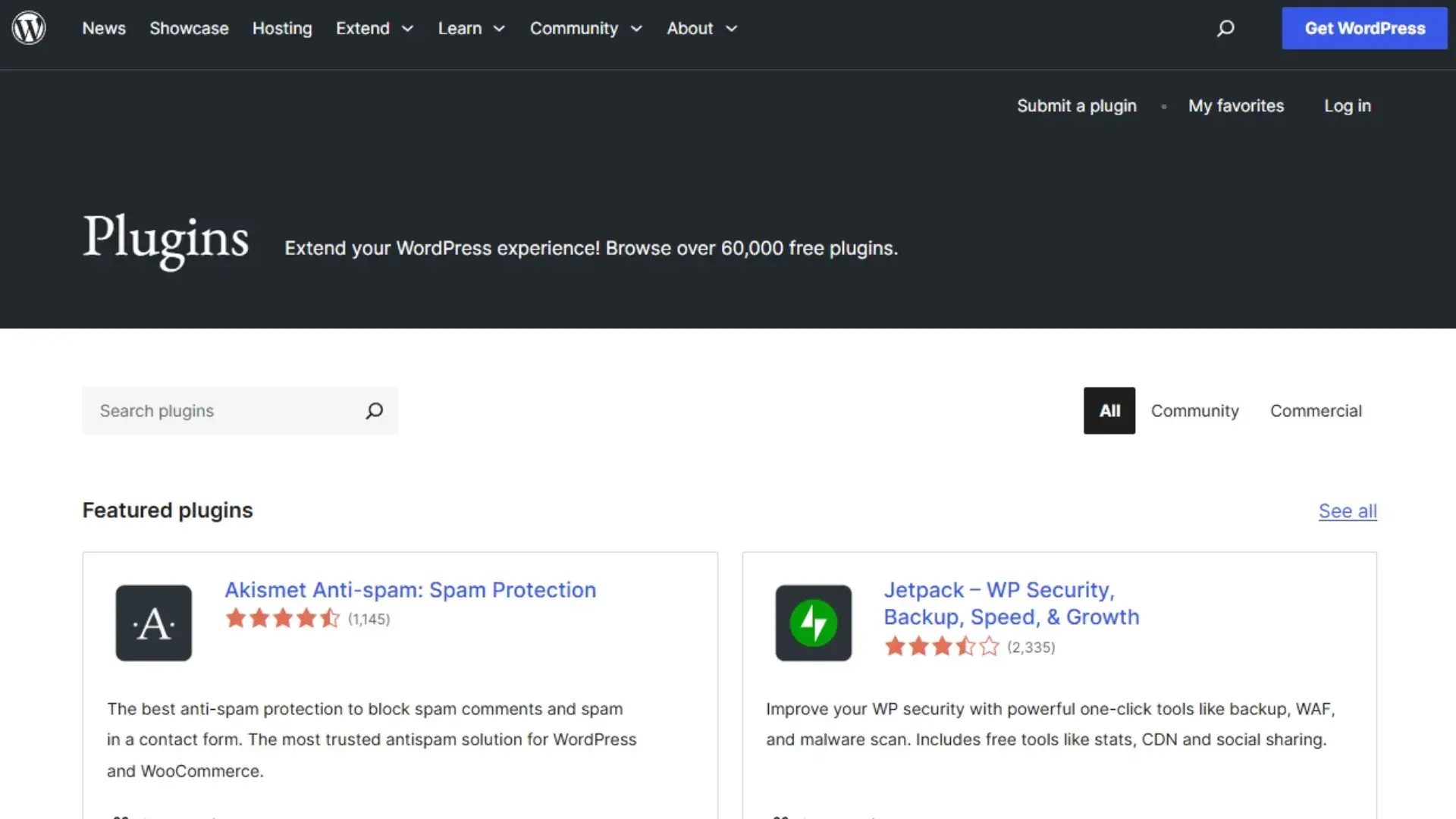
This is the simplest route and what most people use for free plugins. From your dashboard go to Plugins → Add New and use the search box. Type Contact Form 7 and when it appears click Install Now. After installation, click Activate. That’s it the plugin is installed and ready for setup.
This method is safe and convenient because plugins listed in the directory go through basic checks and you can read reviews and active-install counts before installing. For many sites, this will be the go-to method.
Free vs premium
Plugins come in free and premium flavors. Free plugins (like Contact Form 7) are great, but premium versions often add advanced features and dedicated support. Below is a simple comparison to keep in mind (just one quick table to help you decide):
Two safety tips
-
Only download plugins from the WordPress directory or trusted sellers.
-
Keep plugins updated and delete any you don’t use.
Managing and troubleshooting
Once a plugin is active, it will usually add its own menu or a settings page. With Contact Form 7 you’ll find new menus to build and embed contact forms. Keep an eye on updates under Dashboard → Updates and enable auto-updates for essential tools if you’re comfortable doing so.
If a plugin causes problems (broken layout, errors), try deactivating plugins one at a time to find the conflict. Host-level upload limits sometimes block ZIP uploads if your file is large, use FTP to upload the extracted plugin folder into /wp-content/plugins/ and then activate it from the dashboard.
Common errors and how I handle them:
-
Upload fails because of size: upload via FTP or ask your host to raise the limit.
-
Destination folder exists: remove the old plugin folder via FTP or File Manager.
-
Incompatibility after install: check the plugin’s compatibility notes and update WordPress core if safe.
My experience
I have installed dozens of plugins across different sites. Contact Form 7 has been stubbornly reliable for simple contact needs: it’s lightweight, flexible, and free and it keeps working when other flashy contact plugins break with theme updates. That said, if you want drag-and-drop form builders or built-in analytics, a premium form plugin can save time. Personally, I start with free, and only pay when I need a specific feature or reliable developer support.
FAQs
Q: Can I install unlimited plugins?
A: Technically yes, but more plugins can mean more potential conflicts and performance overhead. Focus on quality over quantity choose multifunction plugins when possible.
Q: Should I delete inactive plugins?
A: Yes. If you’re not using a plugin, delete it. Inactive plugins left on the site can still be attack surface and clutter your install.