
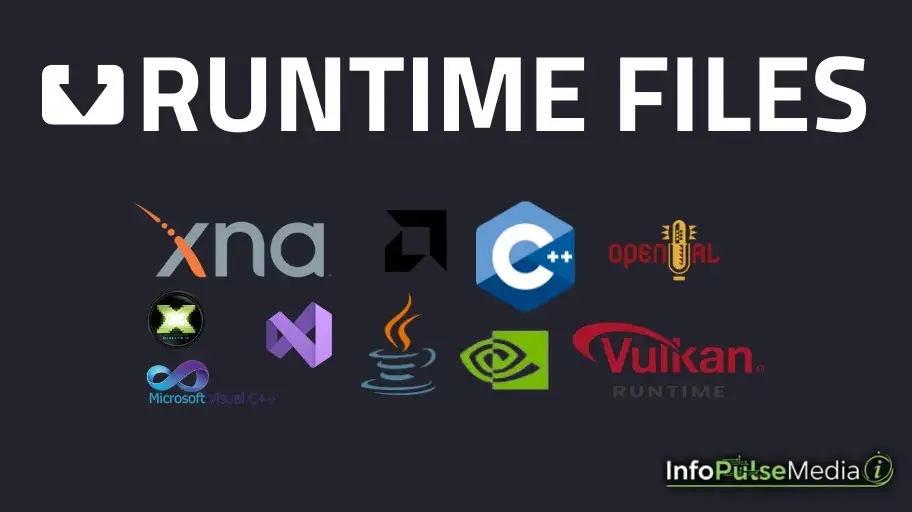
How to Fix And Download Missing Runtime Files in Windows (Java, DirectX, .NET, Visual C++) All In One Folder
We've all been there. You try to install a game or program, and an error message pops up: "Missing runtime library" or "Required component not found." It's frustrating, especially if you don't know what a runtime library is or why it's needed.
The good news is these problems are usually simple to fix once you know what to install. In this guide, I'll walk you through the most common runtimes you might need, like Java, DirectX, Visual C++, and .NET. Each one comes with clear steps on how to download, install, and update them.
So whether you're a gamer running into DirectX errors or you've got an app that refuses to open because a .NET framework is missing, you'll find the solution here. By the end, your system will be up to date, those errors will be gone, and you'll be back to using your PC without the headaches.
Let's get started.
Step 1: Downloading the Latest Version of Java
Java is one of the most common runtimes you'll come across, especially for older or legacy applications. Many programs still depend on it to run properly.
The Java Runtime Environment (JRE) or the Java Development Kit (JDK) makes sure any Java-based software can work smoothly on your system. Without the right version installed, you might run into errors, crashes, or compatibility problems.
How to Download:
-
- Visit the official Oracle website for Java.
-
- Make sure to download the latest JRE/JDK version compatible with your system.
Installation Instructions:
- Download the JRE or JDK installer from Oracle's official page.
- Run the installer.
- Click Yes if a window shows up then click install.
- Optionally: configure the JAVA_HOME environment variable (important for developers).
- Optionally: To verify Java is installed correctly, open Command Prompt (Windows) or Terminal (Linux/macOS) and type
java -version.


Step 2: Downloading Visual C++ Redistributable Runtimes
The Visual C++ Redistributable packages install the libraries that many apps and games need in order to run.
Why does this matter? A lot of popular software is built with Microsoft Visual C++, and without the right redistributable package, those programs may throw errors or fail to start. Installing the correct versions makes sure everything runs as it should.
How to Download:
-
- Choose the version based on your system's architecture (x86 for 32-bit systems, x64 for 64-bit systems).

Installation Instructions:
- Download the all-in-one package and extract it to a folder.
- Inside the folder, run the
.batfile to install all required redistributables in one go. - Wait for the installation process to complete (You should click "Yes" whenever the window appears so that the installation can proceed), then reboot your system if prompted.

Troubleshooting Tips:
-
- If any of the redistributables fail to install, try running the installer as an administrator.
-
- You may need to install individually if it doesn't works from intsall_all.bat.
Step 3: Download DirectX 2010 Offline Installer
DirectX is crucial for rendering multimedia content, especially for games. Many programs rely on older versions of DirectX, such as DirectX 2010, which may not be included in the latest updates.
Why DirectX 2010? This version is often necessary for older games and applications that haven't been updated to work with DirectX 12.
How to Download:
-
- Visit a reputable source like Microsoft's DirectX 2010 Offline Installer From TechPowerUp.
-
- Download the DirectX 2010 offline installer for your system.

Installation Instructions:
- Extract the files and run
dxsetupto begin the installation. - Follow the on-screen instructions and click "Next" until the installation completes.

Step 4: Download DirectX 12 Offline Version
DirectX 12 brings new features that improve graphics quality and performance in modern games and multimedia applications.
If you're playing newer games or using the latest software, having DirectX 12 installed ensures everything runs smoothly and takes full advantage of your hardware.
How to Download:
-
- Go to Github Naxl/Directx12.
-
- Download the offline installer.

Installation Instructions:
- Extract the file, then run the setup executable (
dxsetup). - Follow the prompts, clicking "Next" until installation completes.
Step 5: Installing DirectX Web Version
The DirectX Web Installer is a simple way to update DirectX. It automatically detects your system and installs the version that best matches your hardware, so you don't have to worry about choosing the right one.
How to Download:

Installation Instructions:
- Run the web installer.
- The installer will automatically check your system and download the necessary updates.
Step 6: Installing .NET Framework 9.0 Runtime
The .NET Framework is another critical piece of software for running many Windows applications.
How to Download:
-
- Head to the official Microsoft .NET Framework 9.0 download page.
-
- Download the latest version of the .NET Framework (64-bit) if your Windows system is 64-bit, or download the x86 version if your Windows system is 32-bit.

Installation Instructions:
- Download the installer and run it.
- Follow the installation prompts until the process is complete.
Installing .NET Desktop Runtime 9.0
The .NET Desktop Runtime allows your system to run Windows desktop applications built using .NET. This runtime is essential for many modern desktop applications.
How to Download:
- Visit the official Microsoft .NET Desktop Runtime download page.
- Select the appropriate version of .NET Desktop Runtime 9.0 for your operating system (Windows).
- Download the installer file.

Installation Instructions:
-
Locate the Installer – After downloading, find the installer file (usually named something like
dotnet-runtime-9.0.xxxx-win-x64.exe). -
Run the Installer – Double-click the file to start the installation.
-
User Account Control – If a prompt appears asking for permission, click Yes.
-
Follow the Setup Wizard –
-
Click Next on the welcome screen.
-
Accept the license terms and click Next.
-
Choose an installation location or leave it as default, then click Install.
-
-
Wait for Installation – The installer will copy the necessary files. This can take a few minutes.
-
Finish – When the process is complete, click Finish to exit the installer.
-
Restart Your Computer – A reboot isn't always required, but it's recommended to make sure the runtime is fully installed.
Troubleshooting Tips:
-
- If you receive an error stating that the version already exists, check your current .NET version by running
dotnet --list-runtimesin the Command Prompt (Windows).
- If you receive an error stating that the version already exists, check your current .NET version by running
-
- If the installation fails, make sure your system is up-to-date and that no other .NET installations are in conflict with the new one.
Installing the Latest .NET Framework (v4.8 at Time of Writing)
.NET Framework 4.8 is the latest stable version and supports a wide range of applications, including those built with earlier versions of the .NET Framework.
How to Download:
- Visit the official Microsoft .NET Framework download page.
- Find the .NET Framework 4.8 version and click on the download link for your system (usually a
.exefile).


Installation Instructions:
- Download the Installer: Once the download completes, open the folder where the installer is saved (e.g.,
NDP48-x86-x64-AllOS-ENU.exe). - Run the Installer: Double-click on the installer to begin the installation process.
- User Account Control (UAC): If prompted by UAC, click "Yes" to allow the installer to make changes to your device.
- Installation Wizard: The .NET Framework installer will begin. Follow the on-screen instructions:
-
- Accept the License Agreement by clicking "I agree."
-
- The installer will automatically check your system for prerequisites and update any necessary files.
- Wait for Installation: The installation may take several minutes. You'll see progress bars as files are installed.
- Reboot Your System: Once installation is complete, you will be prompted to restart your computer. Click "Restart Now" if you wish to reboot immediately, or restart manually later.
- Verify Installation: Once your system reboots, you can verify the installation by opening the "Programs and Features" list in the Control Panel. You should see "Microsoft .NET Framework 4.8" listed there.
Step 7: Downloading and Installing Microsoft XNA Framework
The XNA Framework is required to run certain legacy games and applications, as it provides a set of managed libraries to help with graphics, audio, and game development.
How to Download:
- Visit the official Microsoft XNA Framework download page.
- Click on "Download" to download the installer for the framework.

Installation Instructions:
-
Download the Installer – Click the download link to save the XNA Framework installer (usually named
XNARuntime.msi) to your computer. -
Run the Installer – Double-click the
.msifile to start the installation. -
User Account Control (UAC) – If prompted, click Yes to allow changes to your computer.
-
Follow the Setup Wizard –
-
Click Next on the welcome screen.
-
Accept the license agreement and click Next.
-
Choose an installation folder or leave it as default, then click Next.
-
-
Install – The installer will copy the necessary files to your system. This usually takes just a few moments.
-
Finish – Click Finish to exit the installer once it's done.
-
Restart Your Computer – Reboot if necessary to complete the installation.
Step 8: Updating Windows
Keeping your Windows system updated is crucial for both security and performance.
How to Check for Updates:
- Open Settings > Update & Security.
- Click "Check for Updates."
- Install any available updates, especially critical ones that could fix bugs with runtimes.

Step 9: Updating GPU Drivers
Keeping your graphics drivers up to date ensures your GPU runs smoothly and stays compatible with the latest games and applications. Here's how to update drivers for NVIDIA, AMD, and Intel graphics cards.
NVIDIA Drivers
-
Download and Install the NVIDIA App (if not installed):
Visit the official NVIDIA App download page and click Download Now. Follow the on-screen instructions to install it. -
Open the NVIDIA App:
Launch it from the Start Menu or search for it. Sign in or create an account if desired. -
Check for Driver Updates:
In the app, navigate to the Drivers section and click Check for Updates. -
Download and Install the Driver:
If a new driver is available, click Download. Then choose Express Installation for a simple setup or Custom Installation to select specific components.

After installation, restart your PC to ensure the driver is fully applied.
AMD Drivers
-
Download and Install Radeon Software:
Visit the AMD Radeon Software download page and download the latest Adrenalin version. Run the installer and follow the instructions. -
Open AMD Radeon Software:
Launch it from the Start Menu or search for it. -
Check for Driver Updates:
Go to the Home tab and click Check for Updates under Driver & Software. -
Download and Install the Driver:
If a new version is available, click Download and follow the on-screen instructions. You can choose Express Installation or Custom Installation. -
Restart Your Computer:
Reboot to apply the new driver.
Intel GPU Drivers
-
Download and Install Intel Driver & Support Assistant:
Visit the Intel Driver & Support Assistant page and download the tool. Install it following the prompts. -
Run the Intel Tool:
Open the Intel Driver & Support Assistant. It will scan your system for Intel graphics hardware automatically. -
Check for Updates:
If a newer driver is available, the tool will list it. Click Download to get the latest version. -
Install the Driver:
Run the installer and follow the instructions. -
Restart Your Computer:
Restart your PC to complete the driver installation.
Step 10: Vulkan Runtime
Most Vulkan issues are resolved by updating your GPU drivers. Vulkan runtime comes with the driver from most GPU vendors, so you usually don't need to install it separately.
Vulkan is a modern graphics API, similar to DirectX. Games and applications that use it rely on the Vulkan runtime to communicate properly with your GPU.
You might encounter errors like "vulkan-1.dll missing" or crashes when starting a game or emulator that uses Vulkan.
How to Fix Vulkan Issues – Step by Step
-
Update Your GPU Driver
Updating your driver fixes most Vulkan problems (~90%). Download the latest version for your GPU:-
NVIDIA: Download NVIDIA Drivers
-
Intel: Download Intel GPU Drivers
During installation, choose Clean Installation or Express Installation (Clean Installation is recommended if you suspect corrupted drivers).
-
All In One Runtimes Files In One Rar File
Prefer one-click? We have only collected all official runtime download links into one place (we don't own any of them). By clicking the button below, you will be instantly redirected to IDrive, where you can download the file.
FAQs
-
Q: VCRUNTIME140_1.dll was not found. How do I fix this?
A: Redditors recommend installing the matching Visual C++ Redistributable (the installer from Microsoft) or reinstalling the app that shipped it; don’t just grab a single DLL from random sites. -
Q: Windows says I’m missing .dll files that ‘aren’t missing’?
A: Common advice: run the app’s installer/repair, check the app folder, run sfc /scannow, and try the proper redistributable package instead of piecemeal fixes. Many people find it’s a broken install or mismatched runtime. -
Q: Should I download DLLs from sites like dll-files.com to fix missing DLL errors?
A: Most Reddit threads warn against blindly using DLL download sites; they’re a last resort. Preferred approach: reinstall official redistributables, update drivers, or reinstall the program. If you do use a third-party DLL site, consider it risky and scan carefully. -
Q: Which Visual C++ Redistributable should I install for games?
A: People often need multiple years (2012/2013/2015/2017/2019/2022) depending on the game. Community answers: use an all-in-one installer or let the game/Steam installer add the required VC redistributables. If an all-in-one fails, install versions individually. -
Q: Do I need older DirectX runtimes (e.g., DirectX Jun 2010) even if I have DirectX 12?
A: Yes Redditers repeatedly report older games require older DirectX runtimes (D3DX9/D3DX11 files). Installing the DirectX End-User Runtimes (June 2010) often fixes missing D3dx*.dll errors. -
Q: Game says PhysXLoader.dll or OpenAL32.dll is missing — what do I do?
A: Install the vendor runtime: NVIDIA PhysX package for PhysX, and the official OpenAL installer for OpenAL32. Reinstalling the game or installing the vendor runtime fixes it for most users. -
Q: What’s Vulkan Runtime and why does my game want it?
A: Gamers report Vulkan runtime issues for modern titles/emulators. The fix: install/update GPU drivers (Intel/AMD/NVIDIA) which commonly include Vulkan runtime, or install Vulkan SDK/runtime if needed. Many Reddit threads point to driver/runtime updates as the solution. -
Q: How can I check which runtimes are installed (.NET / VC++ / DirectX)?
A: Reddit advice:-
For .NET (.NET Core/.NET 5+): run
dotnet --info. -
For .NET Framework: check registry or Programs & Features.
-
For VC++: many recommend checking Programs & Features or use a PowerShell/registry script (community scripts exist).
-
-
Q: My .NET (or .NET Desktop Runtime) installer says a previous version exists and fails how to fix?
A: Reddit tips: check installed versions (dotnet --list-runtimesor registry), uninstall conflicting versions if necessary, run the installer as admin, install required Windows updates, or use the repair option. -
Q: Should I update GPU drivers or runtimes first when games crash?”
A: Many users advise updating GPU drivers first (they often bundle runtimes like Vulkan/PhysX) then install the required runtime packages (DirectX, VC++). People often fix crashes by rolling back or clean-installing GPU drivers + installing missing runtimes.Bottom Line
Brilliant! At this point, every last action for bringing the system with the very recent runtimes and software to an updated status has been successfully taken. From Mesa3D to DirectX updates and the .NET Framework, all the tools mentioned will improve compatibility and performance; now, your programs and games should launch perfectly.
Hence, remember to work hard toward keeping your system updated through regular updates so that all the bugs will go away immediately, and this guide may come in handy whenever you run into any new problem. So there you go! Happy computing!