
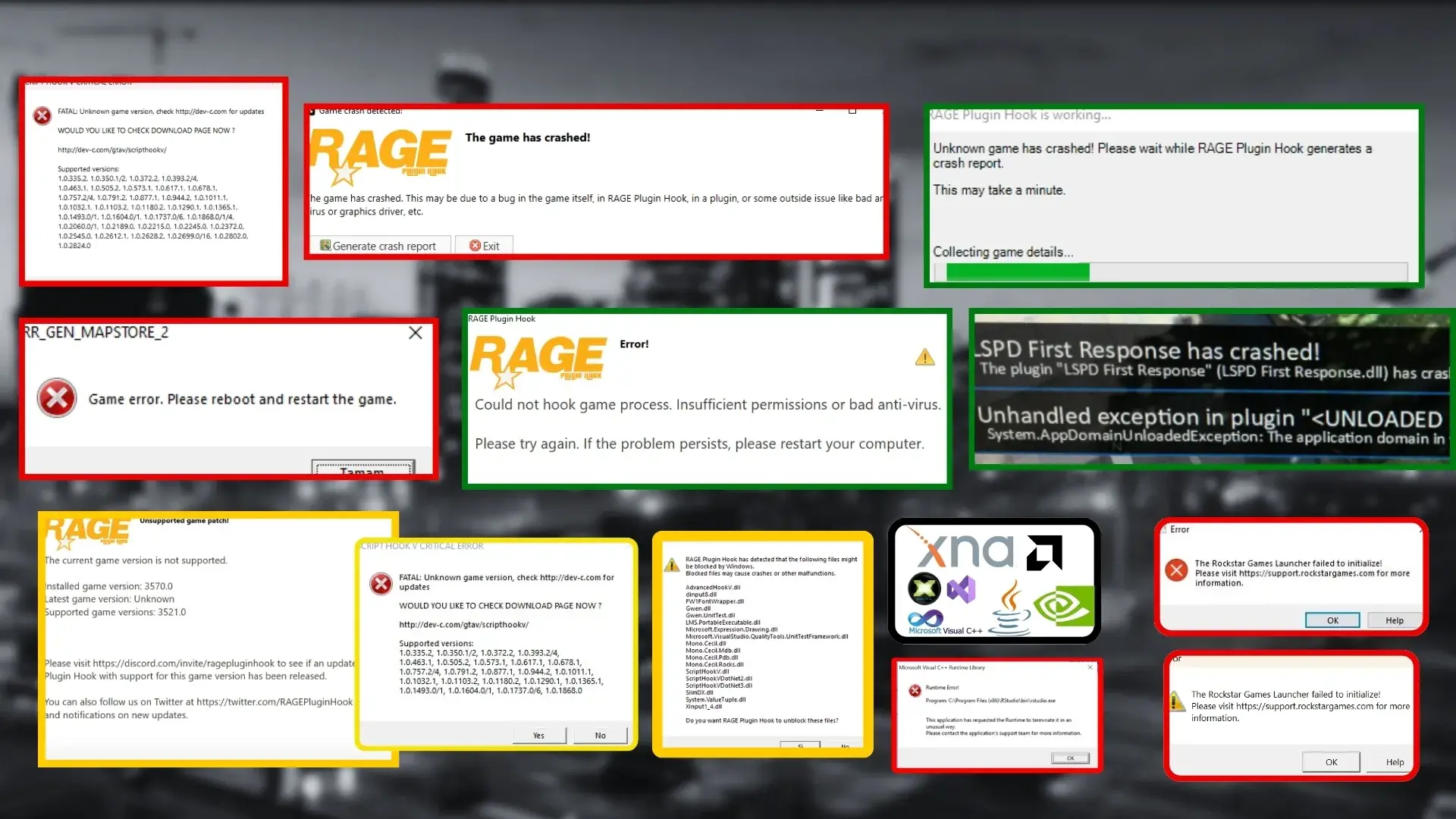
How to Fix All GTA 5 LSPDFR-LCPDFR Crashes, Bugs, Issues: All in One Article (2025)
This guide gathers step by step, plain solutions for the ALL common LSPDFR crashes, bugs, and issues in 2023 – 2025/10/01. Follow the steps in order. If one step does not fix it, move to the next. Keep backups and be patient. i will make numbers on the headings so you know where you at but a reminder for you first 9 steps is MUST you fix the issue but before do the first 9 steps i will call first step (S1, S2, S3, and so on) for more info this article will be updated weekly.
S1- Before you start
- Back up your entire GTA V folder. Copy it to a safe place.
- Duplicate your mods folder and name the copy _mods_backup.
- Copy your save files from
DocumentsRockstar GamesGTA VProfilesYOUR_ID. - Install WinRAR or 7-Zip to extract downloaded zips.
- Turn off automatic game updates while you work. Set Rockstar or Steam to manual update if possible.
- Make one empty folder on Desktop for extracted mod files. Use it to collect files before moving them into the game.
These steps stop you from losing work. They save time when you need to revert.
S2- Download and install WinRAR
- Use WinRAR (recommended) to extract zip/rar archives. Right-click → Extract to to keep files organized.
- If an archive contains many installers, extract all first to a single folder on Desktop, then run the installers one-by-one in the order shown in the runtimes section below. This prevents missed files and keeps the Desktop install folder as a one-stop repo for helpers.
You can use any unzipping app there is no problem
Recommended Guide: How to Download WinRAR on Windows & Mac (and Fix Common Issues)
S3- Windows Update
Before installing drivers or runtimes, make sure Windows is fully updated:
- Open Settings → Update & Security → Windows Update.
- Click Check for updates.
- Download and install every update shown. Reboot and repeat until Windows reports no pending updates.

S4- 10 core files you must download first
Get and extract these four items. They fix limits and compatibility issues that cause most crashes:
- Packfile Limit Adjuster
- Heap Adjuster
- Gameconfig (correct for your GTA build)
- ScriptHook .NET (ScriptHookDotNet – Nightly)
- RAGENativeUI
- PedProp Limit Adjuster
- WeaponInfoBlob Limit Adjuster
- SirenSetting Limit Adjuster
- Resource Adjuster
- Download and Install LSPDFR AGAIN
these files raise file and memory limits. They let GTA load more car and police mods. Many crashes come from hitting those limits. i advice to collect all these files in one folder so you get everything in order.
Steps:
- Download each zip and extract to the Desktop folder you made.
- Use WinRAR or 7-Zip to extract.
- Keep these items ready before adding other mods.
Always download the latest release of these files from the linked pages and use the version that matches your GTA build. Keep the original authors’ README instructions some of these require specific install paths or additional steps.
Keep your plugins & callouts updated
Download and install the latest versions of all plugins and callout packs you use (for example: LSPDFR, StopThePed, UltimateBackup, popular callout packs and dispatch/dispatch-extension mods). Outdated plugins are one of the most common causes of crashes after game updates.
S5- Where to place the files and basic install order
- Open your GTA V main folder. Work in the game root.
- Drop ScriptHook .NET files into the game root. You will see .dll files and .asi files.
- Put Packfile Limit Adjuster and Heap Adjuster and the rest of (9 core files) in the game root.
- Most plugins drop them into game root after extracting (dont just drop the rar/zip file).
1.Extract
2.You may find 2 folders with the names LSPDFR and plugins those drop them in the game root or better to Follow their readme if present. - Place Gameconfig into
modsupdateupdate.rpfcommondatausing OpenIV or by following the mod readme. - Back up any file before replacing it.
- Do not overwrite files you do not understand without a backup.
S5.1- For LSPDFR mod pick the manual install not the setup:
- Download the latest LSPDFR from the official site.
- Extract all files into the GTA V folder.
- Double click
RAGEPluginHook.exe. Let it create a backup if requested. - If you see permissions or antivirus warnings, handle them before continuing. See the antivirus section below.
- If RAGEPluginHook fails to start, check that all required Visual C++ redistributables and .NET are installed.
- If RAGEPluginHook asks to backup your game, accept. It helps if you need to revert.
S6- Graphics drivers updating
NVIDIA (GeForce Experience)
- Download and install GeForce Experience from NVIDIA if you don’t already have it.
- Open GeForce Experience (check the system tray arrow if it opens minimized).
- Go to the Drivers tab and click Download for the latest Game Ready Driver.
- When prompted choose Express Install (recommended unless you need to customize). This installs the Game Ready Driver and usually disables problematic overlay options automatically.
- After the installer finishes, reboot.
Important: pick Game Ready Driver (not Studio) for gaming.
AMD (Adrenalin)
- Download AMD Radeon Software / Adrenalin from AMD’s drivers page.
- Run the installer; allow it to scan and detect your GPU.
- Choose the recommended Windows driver package and proceed with the install.
- Skip any optional quick-setup screens if you prefer to configure later open the driver app and go to the Drivers section to confirm the version.
- Reboot after install.
Notes:
- If you have both AMD and NVIDIA components (e.g., an integrated AMD CPU GPU and an NVIDIA card), install both drivers and let each finish normally. Install GPU driver packages after Windows Update.
- If GeForce Experience or Adrenalin offers overlays or performance services, you will disable them later in the overlays section below (do that before testing mods).
S7- Antivirus and permissions steps
Antivirus programs commonly block mod files and cause crashes.
- Add your entire GTA V folder to antivirus exclusions for real time protection, scans, and behaviour shields.
- If your antivirus still causes issues, remove it and use Windows Defender. Some AVs like Avast, Norton, McAfee and others are known to be problematic with mods.
- Give the GTA folder correct permissions: right click folder, Properties, Security. Make sure SYSTEM, Administrators, and your user have Full Control.
If permission changes fail, run Command Prompt as Administrator and execute:
takeown /F "C:PathToGrand Theft Auto V" /r /d y
icacls "C:PathToGrand Theft Auto V" /grant Administrators:F /t
S7.1- Windows Defender / Antivirus software exclusions
If you prefer the GUI instead of CMD:
- Right-click your GTA V folder → Properties → Security → Edit.
- Select SYSTEM, Administrators and your user account, and make sure Full control is checked for each.
- If your user is not listed, click Add, type your Windows username, and grant Full Control.
If the GUI refuses to change permissions, run the takeown / icacls commands as shown above from an elevated Command Prompt.
Windows Defender exclusions:
- Open Windows Security → Virus & threat protection → Manage settings → Exclusions → Add or remove exclusions.
- Add the entire GTA V folder, and also add specific subfolders used by mods:
mods,Plugins,PluginsLSPDFR, and theRAGEPluginHook.exeandRPHexe files.
This transcript emphasized adding both the game root and the mod subfolders so Defender does not interfere with file writes or runtime plugin loads.
S7.2- Turn off real-time protection temporarily
You can temporarily disable Real-time protection while installing runtimes or drivers, then immediately re-enable it after you add the exclusions.
- Open Start, type Windows Security, and open it.
- Click Virus & threat protection.
- Click Manage settings under Virus & threat protection settings.
- Turn Real-time protection Off (you may need to confirm).

Important: do not keep real-time protection off permanently.
If you use a third-party antivirus
- Open the antivirus program (system tray icon or Start menu).
- Find the protection settings called Real-time protection, Active protection, Shield, or similar.
- Temporarily disable that protection. If the app offers a time limit, choose a short period (e.g., 10–15 minutes).
- Run the installer.
- In the antivirus settings, find Exclusions, Whitelist, or Allowed items and add the installer file/folder and the installed program folder.
- Re-enable real-time protection right away (or wait for the automatic re-enable if you set a timer).
- Restart if required.
S8- Disable overlays
Disabling overlays is a repeated recommendation in the clip because overlays frequently cause plugin crashes or permission conflicts. Do all of these while testing mods:
- NVIDIA In-Game Overlay: GeForce Experience → Settings (gear icon) → General → toggle In-Game Overlay OFF.
- Discord overlay: Discord → User Settings → Game Overlay → disable In-Game Overlay.
- Xbox Game Bar: Settings → Gaming → Xbox Game Bar → turn OFF.
- RivaTuner / MSI Afterburner overlay: Open RivaTuner and disable any OSD or overlay features.
- Intel / AMD overlays: Disable any performance/overlay features from their driver apps.


Do the rest i think you got my idea.
S9- .NET, SlimDX, mscorlib and Visual C++ errors
Symptoms: errors mentioning mscorlib, System.ValueTuple, SlimDX, or EasyHook.
Fix order:
- Install or repair Microsoft .NET Framework 4.7.2 or later. Restart PC.
- Install Microsoft Visual C++ Redistributable packages for 2015 and later both x86 and x64. Restart PC (the link i provided is from techpowerup.com because they have all in one so you don’t install them one by one).
- Remove SlimDX from the game folder and reinstall required components. If SlimDX was in your folder and causing errors, delete it and restart.
- If errors mention EasyHook or invalid entry points, ensure your GTA version is up to date. Old game versions are incompatible. Pirated copies will not work.
S9.1- Runtimes & install order
If you use an “all runtimes” helper bundle or installer pack, follow this order after Windows Update and before testing mods:
- DirectX (run the DirectX web installer, then any DX12 component installer included).
- Visual C++ Redistributables install the supported bundles for 2015, 2017, 2019 and 2022 (both x86 and x64). If the bundle offers a Repair option, use it for already-installed versions.
- .NET Framework / .NET runtime install .NET Framework 4.8 (or >4.7.2) if required, and any additional .NET runtimes your mods request.
- SlimDX / required special libraries only install SlimDX if a mod requires it; otherwise remove local SlimDX copies if present and follow the mod-specific installer.
- Java only if a mod explicitly requires it.
- Extract the helper bundle to your Desktop extraction folder and run each installer manually in the above order.
- Reboot after the sequence completes. Some installers require a reboot before the next installer works correctly.
Recommended Guide: How to Fix And Download Missing Runtime Files in Windows (Java, DirectX, .NET, Visual C++) All In One Folder
LSPDFR, RAGE & GTA V Issues & Fixes Step-by-Step
Each heading below lists a specific issue along with the exact steps to fix it. Make sure you’ve gone through all the previous sections first, as they are essential before starting here.
Plugin timeout and the black screen hang
Symptom: the game shows a black screen while loading LSPDFR. RAGEPluginHook may say a plugin was terminated because it caused the game to freeze.
What happens: some plugins take longer to initialize than RAGEPluginHook’s default timeout. The launcher kills them and the game stays frozen.
Fix steps:
- Open RAGEPluginHook settings right after launching RPH by holding down SHIFT while RPH starts.
- In settings increase PluginTimeoutThreshold to 60000. Save and launch.

- If the black screen continues, set RPH to not load plugins on startup. Start GTA.
- Once loaded, press F4 and type
LoadPlugin LSPD First Response.dll. Wait for it to load. Do not spam keys or click.
If this fails, one of your plugins may be broken. Remove extra plugins in PluginsLSPDFR and test again.
Insufficient Permissions or Bad Antivirus.
Ensure RagePluginHook is launched from the original Grand Theft Auto V installation folder.
- Do not move the Grand Theft Auto V folder from its original location.
- Do not rename the Grand Theft Auto V folder.
- If you want a clean (online) and a modded installation, create a backup folder beside the original and swap the folder names when switching between them.
- Install Grand Theft Auto V in a location without restrictive user-permission rules (for example, not under a locked system folder; Program Files or the root of a secondary drive are acceptable).
- Malware or a damaged Windows installation can prevent RAGEPluginHook from working. Confirm your system is free of infections and other issues (a system reset can resolve underlying problems).
If your GTA V folder is in the correct location and you still see the error, check that your antivirus is not blocking RagePluginHook. Add the GTA V folder to your antivirus exclusions. Note that some antiviruses may still block software despite exclusions.
Programs such as McAfee, Norton, AVG and Avira are commonly problematic and are best removed. If you need guidance, consult your antivirus vendor’s website or community forums for an exclusion tutorial.
If your GTA V folder is in the correct path and listed in your antivirus exceptions but the error persists, check these items:
- Disable GeForce Overlay in GeForce Experience if it is enabled.
- Disable Xbox Game Bar in Windows settings if it is enabled.
- Remove or disable RivaTuner or similar system/overlay utilities.
If you own the Epic Games Store version of GTA V, ensure RagePluginHook was installed into Epic Games → GTAV (assuming you did not choose a custom install path).
If the above does not resolve the issue, you may be facing a permissions problem. This often occurs on pre-built PCs or laptops with factory-installed operating systems. To correct permissions, follow the steps below:
Right-click GTA5.exe in the Grand Theft Auto V folder and open Properties.
Go to the Security tab; it should show entries similar to the example below:
SYSTEM, Administrators and your own user account should have Full Control (all standard permissions checked special permissions are optional). It should resemble the image below:
Ensure the listed accounts match the example above. When finished, close Properties.
Apply the same permission settings to the entire Grand Theft Auto V folder rather than adjusting files individually: right-click the GTA V installation folder → Properties and set Security permissions there.
Once permissions are set correctly for the folder, the error should be resolved. Also repeat this process for RAGEPluginHook.exe. After that, run RagePluginHook.exe from the GTA V folder.
In the folder Properties you may need to change folder ownership. Click Advanced in the Properties window:
Change the folder owner to “Everyone” (or the equivalent name in your system language) by clicking Change and entering Everyone.
Advanced settings for the Grand Theft Auto V folder.
Press OK and save the changes.
Recommended Guide: How to Give Full Permission to Folder in Windows with CMD + More Methods (Full Folder Permissions)
RagePluginHook is installed in the wrong folder. How do I fix that?
Ensure you extracted RagePluginHook into the original GTA V folder. If you want to keep a clean installation and a modded installation, create a separate copy for mods. Both copies must be in the same parent path; switch the folder names when you want to switch between clean and modded installs.
To play the online (clean) version: rename your modded folder to “Grand Theft Auto V – Modded” and remove “- Online” from the clean folder name. The same approach applies to Red Dead Redemption 2.
If nothing works and you are on Windows 8/8.1, upgrading to Windows 10 has helped other users.
RagePluginHook does not open when double-clicked. What should I do?
Make sure you extracted all files from the downloaded .zip into your GTA V / Red Dead Redemption 2 folder. RagePluginHook is not a single executable. Also confirm that all required dependencies are installed. Even if Windows reports they are installed, reinstall or repair them to be sure.
After installing or repairing the three packages above, add your GTA V / RDR2 folder to your antivirus exclusions.
If the folder is in the correct location and exempted from your antivirus but the error remains, check overlays and enhancement tools: disable GeForce Overlay, remove RivaTuner, and similar utilities.
RagePluginHook reports the game is the wrong version. What do I do?
Confirm you are running the latest version of GTA V / RDR2. If unsure, consult the RagePluginHook Discord or the top of this document for current version notes.
If your game is outdated and does not auto-update via Steam or Rockstar Launcher, do the following:
- Delete GTA5.exe from the GTA V folder.
- Verify the game files (Steam or Rockstar launcher will re-download the correct files).
Note: For the Retail version: open the Rockstar Games Launcher → Settings → under “My Installed Games” select GTA V → Verify Integrity → wait for the launcher to download files.
For the Steam version: right-click GTA V in Steam → Properties → Local Files → Verify Integrity Of Game Cache → wait for Steam to download files.
ScripthookV error from RagePluginHook. What should I do?
This typically occurs after GTA V updates. Remove ScripthookV while the game updates.
If ScripthookV is updated and you receive an error, delete dinput8.dll and scripthookv.dll from the GTA V folder. Then re-extract the official ScripthookV .zip from the developer site and copy the files back into the GTA V folder.
Note: NativeTrainer is optional and not recommended.
RagePluginHook is stuck on “Launching Game” or “Waiting for Game Window.”
Run GTA V from its original installation folder. Do not run GTA V as Administrator. If the .exe files are set to run as administrator, disable that option.
Note: Epic Games users must start GTA V before launching RAGEPluginHook.
If the above is correct, verify that GTA V runs without RagePluginHook.
If GTA V runs without RAGEPluginHook → launch GTA V, load into single-player, Alt+Tab out, then start RAGEPluginHook.
If GTA V does not run without RAGEPluginHook → visit the RagePluginHook Discord and provide a screenshot of your GTA V folder for assistance.
RagePluginHook reports Steam is running with elevated privileges. What do I do?
If you use the Steam version of GTA V or RDR2, do not run Steam as Administrator. Steam may have been started with elevated privileges automatically. To change this, open your Steam installation folder (default: C:Program Files (x86)Steam), right-click steam.exe → Properties → Compatibility → uncheck Run this program as an administrator.
I can’t see the RagePluginHook console in-game. How do I enable it?
For GTA V: open commandline.txt in your GTA V folder. The file should be empty; if not, delete its contents. Add the line -windowed, save and close the file, then start the game.
For Red Dead Redemption 2: open the RAGEPluginHook settings by holding SHIFT immediately after double-clicking RagePluginHook.exe. In the settings window choose Always Natives for Console Rendering Method, then launch the game. The console should now be available.
After I click “Save & Launch” nothing happens, though GTA V runs fine. How do I fix this?
This is usually a permissions issue. If RagePluginHook closes immediately after clicking “Save & Launch” but opens again showing “Determining Game branch,” it indicates it cannot read or write the GTA V folder.
There are multiple fixes; try them in order from least- to most-invasive.
- Check your antivirus first. Add the GTA V folder to antivirus exceptions. If your antivirus is Norton, AVG, McAfee, BitDefender or similar and causes issues, remove it and use Microsoft Defender instead.
- Ensure User, SYSTEM and Administrator accounts have Full Control. Right-click the GTA V folder → Properties → Security. Select SYSTEM, Administrators and your user account and make sure Full Control is enabled.
The checkboxes for Full Control should be enabled for those accounts. If not, select the account and click Edit to enable them.
After granting Full Control, try running RagePluginHook as Administrator.
- On some systems (especially pre-built machines) you may encounter a prompt stating permissions cannot be changed; clicking Continue or Cancel will have no effect. To fully reset ownership and permissions you must use the command line.
Open cmd as Administrator and run each command, pressing Enter after each one:
takeown /F <path of your GTA V folder>
takeown /F <path of your GTA V folder> /r /d y
icacls <path of your GTA V folder> /grant Administrators:F
icacls <path of your GTA V folder> /grant Administrators:F /t
After running these commands the console may perform work. Do not interrupt it. Once completed you should be able to assign permissions normally and run RagePluginHook as Administrator.
RagePluginHook crashes after installing visual mods or enbseries.
This crash commonly occurs after installing visual mods that include enbseries.
If you have enbseries files in your GTA V folder, follow these steps:
- Launch GTA V without RagePluginHook and load fully into Story mode.
- Once loaded, pause (ESC) and Alt+Tab out of the game.
- Run RagePluginHook and load into the game.
LSPDFR crashes when you go on duty
Symptom: game crashes to desktop when going on duty.
Common cause: plugin conflict or broken plugin.
Steps to find the bad plugin:
- Move all LSPDFR plugins out of
PluginsLSPDFRinto a temporary folder on Desktop. - Start the game. Go on duty. If no crash, add plugins back one by one. Test after each install.
- When a crash returns, the last plugin added is the problem. Remove it and contact the author or find an updated branch.
If a plugin shows as outdated in logs, update that plugin. Many authors release fixes on GitHub or mod pages.
Log files: always check RAGEPluginHook.log and RPH Crash Logs. They often point to the offending DLL or function.
Common plugin conflicts and how to fix them
Many crashes come from mods that duplicate features. Two mods try to control the same game element and cause errors.
Frequent conflict examples:
- PoliceSmartRadio vs FocalDispatch
- StopThePed vs Arrest Manager vs RestManager
- Multiple callout packs running at the same time
How to fix duplicates and StopThePed / UltimateBackup conflicts in detail:
- Decide which mod you want to keep for each job. For example, choose one dispatch mod, one radio mod, one callout pack.
- Remove or disable all other mods that do the same job. Do not keep multiple dispatch or radio mods installed together.
Specific steps to resolve StopThePed and UltimateBackup conflicts:
- Locate the .ini files for both mods. They are usually in the mod folders or in
PluginsLSPDFRor in the game root. - Open each .ini with Notepad or Notepad++. Search for keybind or
OpenKey,ToggleKey, orMenuKeyentries. - Change their open or toggle keys to values that do not conflict with each other or with default game keys. Choose keys that are easy to press and unlikely to be used by the game, for example F7, F8, or a numeric keypad key.
- Save the .ini files and restart the game.
Test each mod individually. If the conflict is gone, you found the problem. If not, remove one mod entirely and test again.
Why this works: two mods might use the same hotkey to open menus. When both try to capture the same key the game or plugin stack can become unstable and crash. Changing keys removes that collision.
Other tips:
- Read each mod readme for dependency notes. Some mods require a certain mod to be present.
- Use plugin load order only when instructed by the mod author. Most LSPDFR plugins are loaded by LSPDFR itself and not by RPH. If a plugin shows in RPH Plugins tab it was installed incorrectly.
LSPDFR Sync and networking.dat issues
Problem: LSPDFR Sync fails, or the game crashes with a networking error.
Symptoms: errors in logs about lspdfr/networking.dat failing to decrypt, or sync unavailable messages.
Fix:
- Delete
LSPDFRnetworking.dat. Restart RAGEPluginHook and try LSPDFR again. - Make sure your firewall allows UDP outbound on port 5454. If needed add a rule to allow it.
- Verify your PC clock is correct. LSPDFR may reject activity items that are far in the past or future.
- If sync fails regularly on slow connections, try again later or test on a faster connection.
PreloadAllModels and disappearing world textures
Problem explained: you run the game with RAGEPluginHook and LSPDFR. After a few minutes you see streets empty. Cars and peds vanish. Buildings go gray or disappear. Textures flicker. This usually happens when many models try to load at once or when memory limits are hit. The game may try to preload all models and then run out of memory or skip texture loads.
Why it happens: LSPDFR and many vehicle mods request a lot of models at once. If the game tries to preload every model at startup or when you go on duty it can overload the streaming memory. When the model streaming fails the world will look empty or incomplete.
Fix steps:
- Open the
LSPDFR.iniin your LSPDFR folder. - Find the line
Main.PreloadAllModels. - Change it to
Main.PreloadAllModels = false. Save the file. - Restart RAGEPluginHook and GTA V.
Test in game. The world should not disappear now. Models will load on demand instead of all at once.
Extra tips:
- If you still see missing textures, lower your texture streaming settings in GTA V options.
- Make sure packfile limit adjuster and heap adjuster are installed. They increase limits so the game can handle more mods without aggressive preloading.
- If problems persist, temporarily remove some large vehicle packs and test again.
Save game and infinite loading fixes
Symptoms: game stuck on loading screen with floating letters, or infinite load after installing mods.
Steps:
- Rename your mods folder to
_modsand try to start the game. If it loads, one of your mods is broken. - If renaming does not fix the issue, back up and delete recent save files named
SGTA50000or higher inDocumentsRockstar GamesGTA VProfilesRANDOMNUMBER. Then start the game. - If you use OpenIV and a Rockstar update requires update.rpf refresh, open OpenIV, enable Edit Mode and click Update when prompted. This moves the update.rpf to the mods folder correctly.
- If you need a clean save, download a 100 percent save from a trusted source and install it into the save folder. Test LSPDFR after that.
Important: do not save while on duty. Saving while a mod is active can corrupt saves and cause endless load screens.
Revert and Rockstar 7002.1 error
If you tried to revert files with RAGEPluginHook and now Rockstar Launcher shows error 7002.1:
- Update the game to the latest version using Rockstar Launcher. Let it repair and validate files.
For a legacy mod setup keep two separate GTA installations. Switch folder names before updating. One folder stays vanilla, one folder stays modded. That prevents the 7002.1 problem in the future.
Replacement vs add-on and why they break LSPDFR
Replacement cars overwrite an existing vehicle slot. If the replacement goes into the wrong patchday, or uses wrong meta entries, the game may show purple textures, missing textures, or crashes.
Add-on cars add new slots and need correct dlc entries and meta files. They do not spawn as AI unless you add them to popgroups.ymt.
Common failure causes:
- Wrong install path for dlc pack.
- Missing or wrong
vehicles.meta,carvariations.meta, orhandling.meta. - Conflicting
sirenIDsoraudioNameHashvalues for police vehicles. - Natural Vision Remastered emissive files causing purple textures.
Installing replacement cars step by step
- Create mods folder and copy update into
modsupdateif not done. - Open OpenIV and enable Edit Mode.
- Go to
mods/update/x64/dlcpacks/PATCHDAY/dlc.rpf/x64/levels/gta5/vehicles/vehicles.rpf. Use the latest patchday. - Drag and drop model files into
vehicles.rpf. Wait if OpenIV hangs during paste. - In OpenIV go to Tools, ASI Manager and install ASI Loader and OpenIV.ASI.
- Start GTA and spawn the vehicle using RAGEPluginHook console.
If you see purple textures, check the NVR_emissive folder and remove it as explained in the next section.
Installing add-on cars step by step
Two ways depending on pack type.
If the add-on has its own dlc pack:
- Place its folder in
mods/update/x64/dlcpacks/with the folder name matching the pack name. - Open
mods/update/update.rpf/common/data/dlclist.xmland add a new line:
<Item>dlcpacks:/YOUR_DLCPACK_NAME/</Item>
- Save and launch GTA. Spawn the car via console or trainer.
If the add-on has separate files:
- Install Albo1125 MODDING DLC pack in
mods/update/x64/dlcpacks/MODDING/dlc.rpf. - Put
.ytdand.ytfinmods/update/x64/dlcpacks/MODDING/dlc.rpf/x64/levels/gta5/vehicles/vehicles.rpf. - Add the vehicle slot to
vehicles.metainside that MODDING dlc. Use the template in the MODDING package. - Add a
carvariations.metafor police cars to allow LSPDFR to stop and control the car. - Save and launch.
Fix purple or broken textures caused by NVR
Symptom: installed replacement cars look purple or textures break. NVR (Natural Vision Remastered) may create an NVR_emissive dlc pack causing the issue.
Fix:
- Remove
NVR_emissivefrommods/update/x64/dlcpacks. Or editmods/update/update.rpf/common/data/dlclist.xmland remove thenvr_emissiveline. - Restart GTA. Textures should be normal.
Carcols, sirens, and ELS lights
If a car needs custom sirens or lights:
- Open
carcols.ymtwith OpenIV inmods/update/update.rpf/x64/data. Enable Edit Mode. - Copy the
<Item> ... </Item>siren block from the add-on’s carcols into the maincarcols.ymtbefore the closing</Sirens>tag. Wait while OpenIV pastes the text. - Save.
For police cars check audioNameHash. If it is wrong, the radio may appear in that car and keybind conflicts can happen. Use a police template audioNameHash if needed.
If you do not add a proper carvariations.meta the LSPDFR stop function may not work on add-on police vehicles.
Changing DLC load order when Patchday prevents replacements
If the latest patch prevents older replacement cars from overwriting, you can edit load order.
Steps:
- In OpenIV open
mods/update/x64/dlcpacks/PATCHDAY/dlc.rpf/setup2.xml. - Find the content change set that contains the
vehicles.rpf. Copy that item and move it intoGROUPS_STARTUP. This forces the dlc to load earlier and replace older cars. - Save and test.
Warning: this is advanced editing. Backup files first.
Final checklist
- Backup game and saves.
- Install: Packfile Limit Adjuster, Heap Adjuster, Gameconfig, ScriptHook .NET.
- Install RAGEPluginHook and run setup.
- Add GTA folder to antivirus exclusions. Remove problematic AVs if needed.
- Set RAGEPluginHook PluginTimeoutThreshold to 60000.
- Set
Main.PreloadAllModels = falsein LSPDFR.ini. - Remove conflicting plugins. Add back one by one. Change mod hotkeys in .ini files to avoid collisions.
- Install .NET and Visual C++ redistributables.
- Use OpenIV for vehicles and follow the MODDING DLC method for add-ons.
- Remove NVR_emissive if purple textures appear.
- If still broken, upload
RAGEPluginHook.logand crash logs to RPH or LCPDFR support with a plugin list and steps tried.
What to include when you ask for help on Discord or Lcpdfr forums
Send:
RAGEPluginHook.logfrom your GTA folder.- Any crash logs from RPH.
- A list of installed plugins and major mods.
- Steps you tried from this guide.
- Your GTA version number.
This helps the support team solve your problem faster.
Replace order for LSPDFR police mod files
When installing the LSPDFR police mod (or large police-mod bundles), the clip recommends this practical copy-and-replace workflow to avoid partial installs or missed files:
- Extract all downloaded mod zips into your Desktop extraction folder.
- Keep the police mod (the APD/PD pack) files grouped: the main LSPDFR folder,
scriptsorscriptsPlugins, thedlcpackspolice folder (if present), and anyscriptsorinihelpers. - Copy the LSPDFR PD mod top-level files (for example
LSPDFRfolder and its.dll/.asifiles) into the game root first and choose Replace when Windows prompts (you made a backup earlier so this is safe). - Next copy the
scripts/Pluginsfiles (script hook .dll-based plugins) into the appropriatescriptsorPluginsfolder and choose Replace. - Finally, copy any
dlcpacks/ vehicle packs orupdatechanges intomods/update/x64/dlcpacks/and applydlclist.xmlchanges as required.
This order reduces the chance the game will try to load vehicles or features before their script or plugin components are in place.
If you tried the guide step-by-step and the game still crashes, perform the following combined pass as a last-resort sequence, in this exact order:
- Windows Update: fully update Windows and reboot.
- Install GPU drivers (GeForce Experience / Adrenalin) and reboot.
- Extract helper runtimes to Desktop and install in order: DirectX → Visual C++ Redistributables → .NET Framework → SlimDX (if needed) → Java (if needed). Reboot.
- Add Windows Defender exclusions for the entire GTA folder and mod subfolders (and RPH exe files). Re-enable real-time protection after adding exclusions.
- Disable all overlays (NVIDIA, Discord, RivaTuner, Xbox Game Bar, Intel/AMD overlays).
- Give full permissions (via GUI or takeown/icacls) to the GTA folder for SYSTEM, Administrators and your user.
- Install the core mods (Packfile Limit Adjuster, Heap, Gameconfig, ScriptHook .NET) from the Desktop extracted folder, then copy LSPDFR and police mod files in the practical copy order above.
- Install RAGEPluginHook into the game root, then start the game and set
PluginTimeoutThreshold=60000if needed. - If the game still fails, temporarily rename
modsto_modsand remove extra mods such as Super Callouts, UltimateBackup or big traffic packs; test with a minimal set: the four core files + LSPDFR only.
Final notes
- Do not run two mods that do the same thing. Pick one per system.
- Never save while on duty.
- Keep backups before heavy edits.
- If your GTA is pirated, many fixes will not work. Use a legal copy.
Most crashes are from limits, permissions, antivirus, or conflicting mods. If you follow the steps here you will fix most cases.
This combined sequence addresses most layering problems (OS updates, driver mismatches, missing runtimes, security interference, overlay interference and file permission errors).